Note on freshness. MCP moves quickly: servers get archived, configuration paths change, and the specification itself is still being revised. This article was published in November 2025 and last reviewed in July 2026. The concepts and the security advice hold up; specific server names, install commands, and menu paths should be checked against the official documentation linked near the end.
AI Work Revolution: how to expand the capabilities of language models
Language models, such as Claude or ChatGPT, have revolutionized the way we work with computers. However, despite impressive capabilities, these tools have a significant limitation — they are isolated from real data and systems that we use every day. They cannot search your drive themselves, update a database, or interact with the APIs of external services. At least until now.
In November 2024, Anthropic presented the Model Context Protocol (MCP) — an open standard that changes the rules of the game. MCP acts as a universal interface that allows AI models to connect with external data sources and tools in a standardized and safe way. It is like giving your AI assistant real hands with which it can perform specific tasks.
Adoption was unusually fast for a standard. OpenAI officially took MCP into its ecosystem in March 2025, Google DeepMind committed to it the following month, and by late 2025 GitHub had gone as far as retiring its own proprietary Copilot Extensions in favour of it. That last one is the strongest signal available: a major platform deleting its own competing system rather than defending it. MCP is no longer an Anthropic initiative — it is the industry's plug.
In this article, I will show what MCP servers are, why it is worth using them, and how to configure them in the most popular AI tools. I will also present the most interesting servers for developers and non-technical users.
What are MCP servers?
Let's start with the basics. Model Context Protocol is an open communication protocol that standardizes the way AI models connect to external data resources and tools. We can compare it to USB-C for artificial intelligence — a universal connector that works everywhere.
The N×M problem that MCP solves
Before the appearance of MCP, every AI integration with an external tool required writing dedicated code. If you had N AI models and M tools, you had to create N×M different integrations. This was a nightmare for both developers and companies wanting to use AI in their systems.
MCP solves this problem by creating a universal standard. Now it is enough to implement an MCP server once for a given tool, and all AI models supporting this protocol can use it. The N×M problem turns into an N+M problem — a dramatic reduction in complexity.
How does it work in practice?
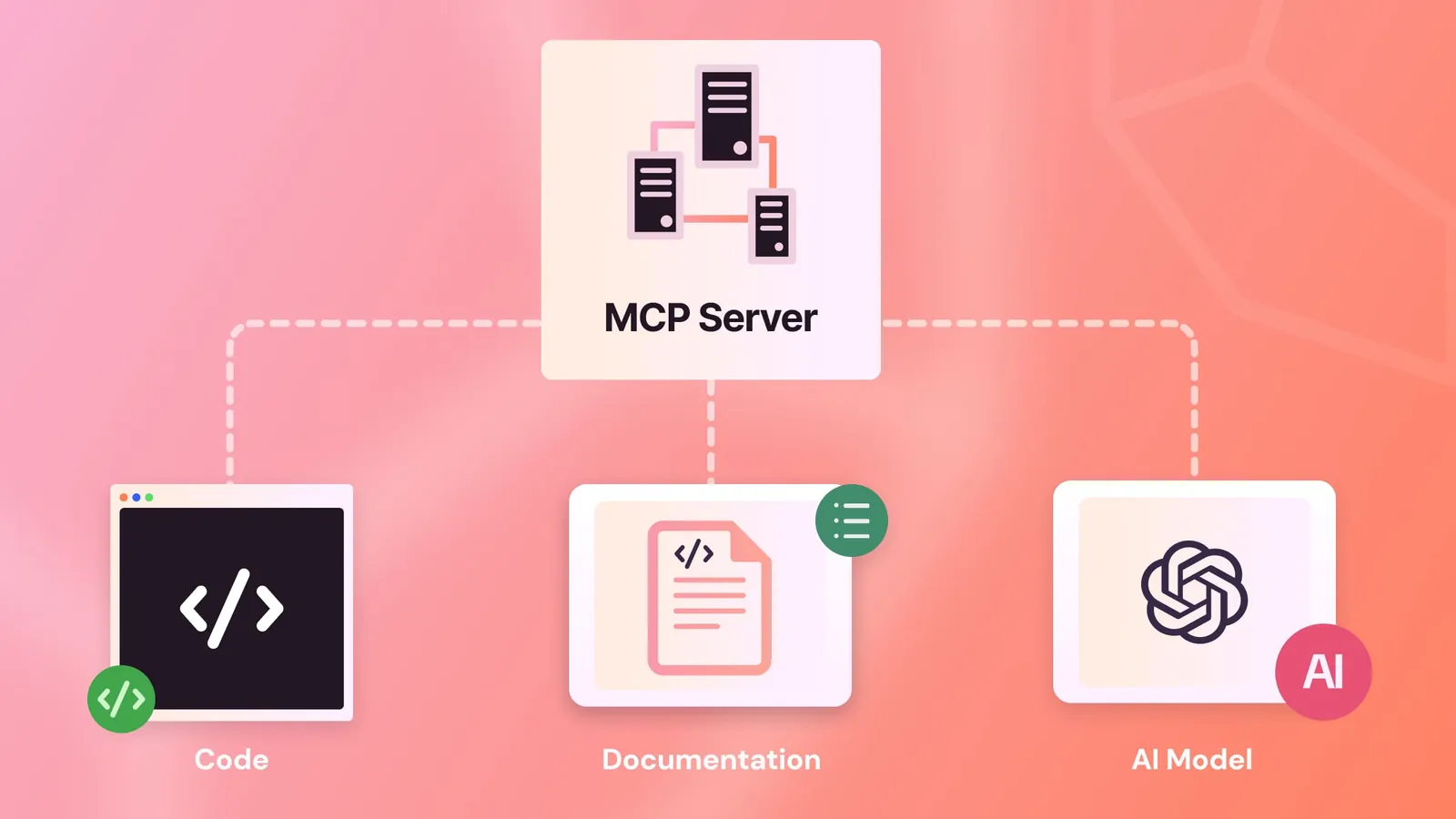
MCP servers are lightweight programs that act as bridges between the AI model and an external data source or tool. They can be run locally on your computer (for access to files, databases, or applications) or remotely in the cloud (for internet services).
The protocol defines three main components:
- Resources: data that the server makes available to the AI model — these can be files, database entries, or documentation
- Tools: functions that the AI model can call — e.g., saving a file, sending a message, or executing a SQL query
- Prompts: predefined prompt templates that facilitate work with a given tool
Communication takes place via JSON-RPC 2.0, which makes the protocol lightweight and universal. MCP was designed with security in mind — it supports OAuth 2.0, authentication, and granular permission control.
Why use MCP servers?
The benefits of using MCP are huge, both for individual users and for entire teams.
Elimination of hallucinations and access to current data
One of the biggest problems of language models are hallucinations — situations in which AI invents information. MCP radically reduces this phenomenon by giving models access to real, current data. Instead of relying on knowledge from the training period, the model can reach directly into your database, documentation, or API.
Automation of complex workflows
With MCP, your AI assistant ceases to be a passive chatbot and becomes an active agent that can perform multi-stage tasks. Examples:
- Server log analysis, problem identification, and automatic creation of a ticket in the ticketing system
- Retrieving data from the database, generating a report, and sending it via Slack
- Searching the code repository, finding security bugs, and creating pull requests with fixes
Standardization and reduction of development costs
Thanks to the open standard, organizations can build integrations once and use them with various AI models. This means:
- Lower development costs
- Easier system maintenance
- Possibility to change AI provider without rewriting integrations
- Faster implementation of new functionalities
Security and access control
MCP was designed with corporate security in mind. The protocol supports:
- Granular permission control — you can specify which resources the model has access to
- OAuth 2.0 and other authentication mechanisms
- Resource Indicators (RFC 8707), which prevent access token abuse
- Audit of all actions performed by AI
However, it is worth remembering that MCP security is still evolving. In 2025, researchers detected several vulnerabilities, including prompt injection problems and potential data exfiltration. It is important to use only trusted MCP servers and regularly update their versions.
How to add MCP servers to LLMs?
Now let's move on to practice — I will show you how to configure MCP servers in the most popular AI tools.
Claude Desktop — the simplest configuration
Claude Desktop currently offers the most polished support for MCP. Since September 2025, Desktop Extensions have been introduced — .mcpb packages that you install with one click, without the need to edit configuration files.
Method 1: Installation via extensions catalog (recommended)
For users of paid plans (Pro, Max, Team, Enterprise):
- Open Claude Desktop and go to
Settings → Extensions - Click
Browse extensionsto browse the official catalog - Select the extension you are interested in and click
Install - Configure the required settings (e.g., API keys) in the friendly interface
- The extension is immediately available in conversations
Method 2: Manual configuration (for advanced users)
For users of the free plan or their own MCP servers:
- Open Claude Desktop and go to
Settings → Developer - Click
Edit Config— theclaude_desktop_config.jsonfile will open - Add the MCP server configuration in JSON format:
{
  "mcpServers": {
    "filesystem": {
      "command": "npx",
      "args": [
        "-y",
        "@modelcontextprotocol/server-filesystem",
        "/Users/username/Desktop",
        "/Users/username/Downloads"
      ]
    },
    "github": {
      "command": "npx",
      "args": ["-y", "@modelcontextprotocol/server-github"],
      "env": {
        "GITHUB_TOKEN": "twoj-token-github"
      }
    }
  }
}
- Save the file and restart Claude Desktop
- After restarting, you will see a hammer icon in the bottom right corner — click to see available tools
Note: You need Node.js installed on your computer. Check the installation by running node --version in the terminal.
ChatGPT — Developer Mode with full MCP support
OpenAI added full support for MCP in September 2025 via Developer Mode. It is a powerful, but — as OpenAI itself warns — "powerful but dangerous" functionality.
How to enable Developer Mode:
- Log in to ChatGPT (Plus or Pro plan required)
- Go to
Settings → Connectors → Advanced - Enable
Developer Mode - Click
Createto add a new MCP connector
Remote MCP server configuration:
{
  "name": "Mój serwer MCP",
  "url": "https://twoj-serwer-mcp.com/sse",
  "transport": "sse",
  "auth": {
    "type": "oauth",
    "client_id": "twoj-client-id",
    "client_secret": "twoj-secret"
  }
}
Important information about Developer Mode:
- ChatGPT can perform write operations — update data, send messages, modify files
- Always verify actions before executing them (confirmation is required by default)
- Does not support local servers — you need a tunnel like ngrok for local applications
- Available only in the browser, not in the mobile app
- Supports SSE and Streaming HTTP protocols
Security: OpenAI warns that misconfigured connectors or prompt injection attacks can lead to data loss or unintended actions. Use only trusted MCP servers and verify all write operations.
Other tools supporting MCP
The MCP ecosystem is growing fast. Here are other popular tools with support for this protocol:
Cursor IDE
Cursor, a code editor based on VS Code with built-in AI, supports MCP natively. Configuration in the .cursor/mcp.json file:
{
  "mcpServers": {
    "github": {
      "command": "npx",
      "args": ["-y", "@modelcontextprotocol/server-github"],
      "env": {
        "GITHUB_TOKEN": "twoj-token"
      }
    }
  }
}
Claude Code
Anthropic's own agent — a terminal tool that also ships as desktop apps for macOS and Windows, a web app, and extensions for VS Code and JetBrains IDEs. On Windows the native installer needs neither WSL nor Node.js. MCP servers are added from the command line:
claude mcp add --transport http context7 https://mcp.context7.com/mcp
claude mcp list
GitHub Copilot
Worth calling out separately, because it is the clearest sign MCP has won as a standard: GitHub deprecated its proprietary Copilot Extensions in late 2025 and replaced them with MCP. Any MCP server now works as a Copilot integration, with MCP support generally available in VS Code, Visual Studio, JetBrains IDEs, Eclipse, and Xcode.
Cline
A popular open-source agent extension for VS Code with first-class MCP support — it can even install and configure MCP servers for you on request. It is a separate community project, not an Anthropic tool.
Windsurf and Zed
Modern code editors with built-in support for MCP from day one. Do not require installation of additional extensions.
JetBrains IDEs
JetBrains is working on MCP integration in IntelliJ IDEA, PyCharm, and WebStorm. The MCP server runs locally in the IDE and provides context of the whole project for AI suggestions.
Best MCP servers for developers
Let's get down to specifics — which MCP servers really change the way developers work?
GitHub MCP — code management without leaving the editor
Official server from GitHub — one of the most popular MCP servers. Allows for:
- Browsing repositories, commits, and pull requests
- Creating and managing issues
- Commenting and code review
- Searching in code and history
Why it's worth it: Stay in your flow. Instead of switching between the IDE and the browser, just ask the question: "What issues are assigned to me in project X?" or "Create a pull request with my changes in the feature/auth branch".
Documentation and resources:
- GitHub Repository: github.com/github/github-mcp-server
- Installation guide for Claude, VS Code, Cursor
- GitHub Blog post with practical examples
Installation:
{
  "mcpServers": {
    "github": {
      "command": "npx",
      "args": ["-y", "@modelcontextprotocol/server-github"],
      "env": {
        "GITHUB_TOKEN": "ghp_your_token_here"
      }
    }
  }
}
Filesystem MCP — intelligent file management
Fundamental server from Anthropic that gives AI access to your file system with controlled permissions.
Capabilities:
- Reading and writing files
- Creating and deleting directories
- Searching for files by patterns
- Analyzing project structure
Usage example: "Find all TypeScript files in the project that contain unused imports and remove them" — AI will scan the project, find problems, and automatically fix them.
Documentation:
- GitHub: modelcontextprotocol/servers/filesystem
- Examples: modelcontextprotocol.io/examples
Security: You specify the exact paths the AI has access to. It cannot go outside these directories.
Docker MCP — containerization from the chat level
For developers working with Docker, this server is a game-changer.
Features:
- Listing and managing containers
- Starting and stopping services
- Executing commands in containers
- Inspecting logs and application status
Real-world scenario: "Restart database and backend containers, show logs from the last 5 minutes" — all without leaving the code editor.
Resources:
- Community implementation: github.com/QuantGeekDev/docker-mcp
- Docker Hub MCP Catalog: hub.docker.com
Sequential Thinking MCP — AI that thinks out loud
This is not a typical data access server — Sequential Thinking adds the ability of reflective problem solving to AI.
How it works: The model divides complex problems into a sequence of thoughts, showing its reasoning process step by step. Each step can question or develop previous conclusions.
Ideal for:
- Debugging complicated errors
- Designing system architecture
- Solving algorithmic puzzles
- Application performance analysis
Documentation:
- GitHub: modelcontextprotocol/servers/sequentialthinking
- Installation:
npx -y @modelcontextprotocol/server-sequential-thinking
PostgreSQL MCP — databases in natural language
⚠️ Note: The official PostgreSQL server from Anthropic was archived in May 2025 due to detected security vulnerabilities (SQL injection). We do not recommend using the version @modelcontextprotocol/server-postgres.
Safe alternative:
- Azure Database for PostgreSQL MCP Server: github.com/Azure-Samples/azure-postgresql-mcp
SQL queries have never been so simple — for safe implementations.
What it offers:
- Executing SQL queries via natural language
- Database schema analysis
- Query optimization
- Migrations and data management
Example: "Show me the 10 most active users from the last month and their average order value" — AI will write and execute the appropriate query itself.
Context7 MCP — current documentation always at hand
One of the biggest problems of AI in programming is outdated knowledge about libraries and frameworks. Context7 solves this problem.
Functionality:
- Access to the latest documentation of thousands of libraries
- Semantic search in docs
- Code examples and best practices
- Support for the most popular languages and frameworks
Example: "How to use React Hooks in version 18.3?" — AI will reach for the latest documentation instead of relying on outdated knowledge.
Documentation:
- GitHub: github.com/upstash/context7
- Website: context7.com
- Remote Server:
https://mcp.context7.com/mcp
AWS and Azure MCP — cloud under control
Microsoft and AWS have released official MCP servers for their cloud platforms.
AWS MCP Server offers:
- Management of Lambda, ECS, EKS resources
- Access to documentation and best practices
- Billing and performance metrics
- Deployment and application scaling
AWS Documentation:
- GitHub: github.com/awslabs/mcp
- Official documentation: awslabs.github.io/mcp
- Blog post: AWS News Blog
Azure MCP Server provides:
- Integration with Azure DevOps
- Management of Cosmos DB and Storage
- Access to Azure CLI
- Monitoring and logs
Azure Documentation:
- GitHub: github.com/Azure/azure-mcp
- Microsoft Learn: learn.microsoft.com/azure-mcp-server
- Getting Started: Installation Guide
Playwright MCP — UI test automation
Official server from Microsoft. End-to-end tests written in natural language? It is now possible.
Capabilities:
- Automatic form filling
- Testing user interactions
- Screenshots and session recording
- Cross-browser testing
Demo: "Test the registration form — fill all fields with correct data, submit, and verify that the user is redirected to the dashboard" — Playwright will execute the entire sequence automatically.
Documentation:
- GitHub: github.com/microsoft/playwright-mcp
- Installation:
npx @playwright/mcp@latest
Microsoft Learn Docs MCP — always up-to-date .NET documentation
Official server from Microsoft for .NET developers — this is a must-have. The server provides access to official Microsoft Learn documentation in real-time.
Why it's important: AI often doesn't know the latest C# or .NET features. This server solves the problem by giving access to current API references, tutorials, and best practices.
Documentation:
- GitHub: github.com/MicrosoftDocs/mcp
- Microsoft Learn: learn.microsoft.com/training/support/mcp
- Remote Endpoint:
https://learn.microsoft.com/api/mcp(public, no authentication)
Git MCP — version control from the AI level
Git management without memorizing commands.
Features:
- Committing changes with intelligent messages
- Branch management
- History and diff between versions
- Resolving merge conflicts
Note: The official GitHub MCP Server (described earlier) provides the most complete Git support, especially for GitHub workflow. For repositories outside GitHub, check:
- cyanheads/git-mcp-server — universal for any Git repository
Best MCP servers for non-technical users
MCP is not just a toy for programmers — non-technical people can also significantly improve their work.
Google Drive MCP — intelligent document management
Your Google Drive becomes fully searchable and editable by AI.
What you can do:
- Searching documents by content
- Creating and editing files
- Organizing folders
- Sharing and managing permissions
Example: "Find all presentations from Q4 2024 related to marketing and move them to the Archives folder".
Status: The official server from Anthropic was archived in May 2025. Community implementations are available for Google Drive and the entire Google Workspace — details later in the article.
Slack MCP — team communication without switching windows
Stay up to date with Slack without constantly checking the app.
Capabilities:
- Reading unread messages
- Sending messages and replying in threads
- Searching in conversation history
- Managing channels and reminders
Use case: You are working in a code editor and want to be up to date with the team: "Check if there were any important messages on #devops in the last hour".
Status: The official server from Anthropic was archived in May 2025. Most popular community implementation:
- korotovsky/slack-mcp-server — feature-rich, supports DMs, Group DMs, multiple transports (used by 9000+ users)
Notion MCP — knowledge and task management
Official server from Notion. Notion is a popular tool for project management and note-taking. With MCP you can manage it via AI.
Features:
- Retrieving and updating pages
- Creating tasks and projects
- Searching in notes
- Managing Notion databases
Example: "Show me all Notion tasks marked as 'High Priority' and remind me about them tomorrow morning".
Documentation:
- GitHub: github.com/makenotion/notion-mcp-server
- Notion Developers: developers.notion.com/docs/mcp
- Getting Started: Installation Guide
- Remote Server:
https://mcp.notion.com/mcp
Gmail and Google Calendar MCP — productivity to the max
Manage emails and calendar without switching tabs.
Gmail MCP:
- Searching and filtering emails
- Sending messages with intelligent replies
- Managing labels and folders
- Inbox analysis
Google Calendar MCP:
- Adding and editing events
- Checking availability
- Reminders and summaries
- Integration with other tools
Workflow: "Check my calendar for this week and send an email to the team with a summary of upcoming meetings".
Community implementations:
- Gmail: GongRzhe/Gmail-MCP-Server — auto-authentication, attachments
- Gmail: shinzo-labs/gmail-mcp — full Gmail API, remote server
- Google Calendar: nspady/google-calendar-mcp — most complete implementation
- All-in-One: taylorwilsdon/google_workspace_mcp — Gmail + Calendar + Drive + more
Brave Search MCP — private web search
Official server from Brave. Give your AI access to the internet while maintaining privacy.
Why Brave:
- Does not track users
- Fast and accurate results
- Dedicated API for developers
- 2000 free queries per month
Features:
- General and local search
- Filtering results by date, safety
- Support for technical queries
Documentation:
- GitHub: github.com/brave/brave-search-mcp-server
- Installation:
npx -y @brave/brave-search-mcp-server
Figma MCP — design meets development
Official server from Figma (Open Beta). For designers and developers working with Figma.
What it offers:
- Searching projects and components
- Inspecting styles and properties
- Exporting assets
- Generating code from design
Example: "Show me all colors used in the Dashboard project and generate CSS variables".
Documentation:
- GitHub Setup Guide: github.com/figma/mcp-server-guide
- Figma Developers: developers.figma.com/docs/figma-mcp-server
- Remote Server:
https://mcp.figma.com/mcp - Local Desktop:
http://127.0.0.1:3845/mcp(enable in Figma Desktop)
Excel and Google Sheets MCP — data analytics simplified
Analyze and modify spreadsheets in natural language.
Capabilities:
- Data analysis and creating charts
- Automatic formulas and functions
- Data cleaning and transformation
- Generating reports
Use case: "Analyze sales from this sheet, group by months, and create a trend chart".
Community implementations:
- Excel: negokaz/excel-mcp-server — read/write Excel, Windows live editing
- Google Sheets: xing5/mcp-google-sheets — most complete, CRUD, batch updates
- Google Sheets: isaacphi/mcp-gdrive — combination of Drive + Sheets
Puppeteer MCP — browser automation
Web scraping and automation without writing code.
Features:
- Automatic form filling
- Screenshots and PDFs from pages
- Navigation and clicking
- Data extraction from pages
Example: "Go to this page, fill out the contact form, and send a message".
Status: The official server from Anthropic was archived in May 2025. We recommend using the official Playwright MCP Server from Microsoft (described earlier), which offers better capabilities and is actively developed.
YouTube MCP — channel management and analytics
For YouTube content creators.
Capabilities:
- Channel statistics and analytics
- Managing videos and playlists
- Comments and interactions
- SEO optimization of videos
Community implementations:
- ZubeidHendricks/youtube-mcp-server — video management, Shorts, advanced analytics
- dannySubsense/youtube-mcp-server — 14 functions, technology freshness scoring
- anaisbetts/mcp-youtube — basic YouTube API support
Google Workspace MCP — everything in one place
If you need a comprehensive solution for the entire Google ecosystem, there is one server that combines it all.
taylorwilsdon/google_workspace_mcp — the most complete integration:
- Website: workspacemcp.com
- GitHub: github.com/taylorwilsdon/google_workspace_mcp
- Installation:
uvx workspace-mcp --tool-tier core
What it includes:
- Gmail (sending, reading, drafts, labels)
- Google Drive (files, folders, sharing)
- Google Calendar (events, availability, invitations)
- Google Sheets (read/write, formulas)
- Google Docs (creation, editing)
- Google Slides (presentations)
- Google Forms, Tasks, Chat, Custom Search
Why this solution:
- Production-ready with OAuth 2.1
- One installation for all Google services
- One-click setup for Claude Desktop
- Actively developed and maintained
Docker MCP Toolkit — managing MCP servers in one place
Docker Desktop has introduced MCP Toolkit — a tool that significantly facilitates managing local MCP servers.
What it offers:
- MCP server catalog with one-click installation
- Automatic management of dependencies and containers
- Central configuration for all AI tools
- Easy updates and removal of servers
How to use:
- Install Docker Desktop with MCP Toolkit
- Go to the MCP tab in Docker Desktop
- Browse the catalog and install servers with one click
- Configure connection with Claude Desktop or other tools
This is an excellent solution for people who want to experiment with multiple MCP servers without manually configuring each of them.
Security and best practices
Current MCP security challenges
Although MCP is an open-source protocol with a well-thought-out architecture, security researchers have identified several significant problems:
Prompt Injection
Malicious MCP servers may try to manipulate prompts sent to the AI model, forcing it to perform unwanted actions. OpenAI calls this "powerful but dangerous".
Token Misuse
Problem with improper use of access tokens. That is why since June 2025 MCP requires the implementation of Resource Indicators (RFC 8707), which limit the scope of tokens to specific servers.
Lookalike Tools
Possibility of one tool impersonating another, which may lead to data leakage.
NeighborJack
Vulnerability detected in July 2025 that could expose MCP servers in the local network, giving attackers access to the entire host.
How to protect yourself against threats?
- Use only trusted servers: Install servers from official GitHub repositories, Anthropic Registry, or from proven providers
- Verify permissions: Before running the server, check what resources it will have access to
- Update regularly: Keep MCP servers and AI tools on the latest versions
- Do not share publicly: Local servers should remain local — do not expose them to the internet without appropriate security measures
- Use OAuth: When possible, use OAuth instead of static tokens
- Audit logs: Monitor what actions AI performs via MCP servers
- Environment isolation: Consider running MCP servers in Docker containers for an additional layer of security
What has happened since (as of July 2026)
This section originally listed the November 2025 roadmap as future plans. Most of it has since shipped, which is a useful reality check on how fast this ecosystem moves — so here is the same list, updated with what actually happened.
Server discovery: delivered
The public MCP Registry moved out of preview. Alongside it, Google shipped an Agent Registry on Google Cloud as a generally available catalogue for discovering and registering both agents and MCP servers. Servers can announce their capabilities via .well-known URLs, which is what makes automatic cataloguing possible.
Practically: you are less likely to hand-write a JSON config today than to install from a catalogue.
Protocol scaling: delivered, and substantially rewritten
The specification received its largest revision since launch, moving to a stateless core that runs on ordinary HTTP infrastructure. That sounds dry, but it is the change that makes MCP servers deployable like any other web service — behind a load balancer, horizontally scaled, without bespoke session handling. If you are writing a server rather than just using one, read the current specification rather than a 2025 tutorial; this is where the differences are largest.
Gemini support: delivered
Google's commitment turned into shipped product. Google Cloud services are being progressively exposed over MCP behind a consistent endpoint, and Gemini CLI acts as a standard MCP client — so the protocol now genuinely spans Anthropic, OpenAI, Google, and Microsoft tooling.
The lesson worth keeping
Note how much of the above was described as "coming soon" only months earlier. If you are reading a guide to MCP — including this one — check the publication date first. The concepts have been stable since launch; the plumbing has not.
Key resources and documentation
If you want to explore the MCP topic, here are the most important sources:
Official MCP documentation:
- Website: modelcontextprotocol.io
- Server examples: modelcontextprotocol.io/examples
- Roadmap: modelcontextprotocol.io/development/roadmap
GitHub Repositories:
- Active servers: github.com/modelcontextprotocol/servers
- Archived servers: github.com/modelcontextprotocol/servers-archived
- MCP Registry: github.com/modelcontextprotocol/registry
Articles and announcements:
- Anthropic announcement: anthropic.com/news/model-context-protocol
- Claude Desktop Extensions: anthropic.com/engineering/desktop-extensions
Community server catalogs:
- Awesome MCP Servers: github.com/punkpeye/awesome-mcp-servers
- MCP Index: mcpindex.net
Summary
Model Context Protocol is not just another technology — it is a fundamental change in how we interact with artificial intelligence. We have moved from isolated chatbots to integrated agents that can act in the real world.
Key takeaways:
- MCP is an industry standard: Adoption by OpenAI, Google DeepMind, Microsoft, and Anthropic confirms that this is the future of AI integration
- Something for everyone: You don't have to be a programmer to use MCP — servers for Gmail, Drive, or Notion are equally useful
- Security matters: Use only trusted servers and monitor permissions
- The ecosystem is growing: Hundreds of new MCP servers are created every month — you will find the right tool for every use case
- Claude Desktop leads: Currently the most polished MCP integration, with Desktop Extensions facilitating installation
- ChatGPT is catching up: Developer Mode gives full write capabilities, though it requires caution
- This is just the beginning: The roadmap shows that MCP will be even more powerful with async, registry, and better scaling
Will MCP replace programmers? Of course not. Just as a hammer didn't replace builders, and Excel didn't replace accountants, MCP won't replace developers. But it will change the way we work — allowing us to focus on solving problems instead of writing boilerplate and managing integrations.